Entering Municipal Data & Import
Overview
Use the Input Schedule to add municipal premium data.
You can add data to the Input Schedule by:
- importing a file
- copying and pasting from a spreadsheet
- manually entering amounts into the applicable municipality rows

Before entering or importing data, confirm that the correct year, state, company, and quarter are selected.
For Kentucky filings, make sure the correct quarter is selected before importing or entering data.
Import Premium Data
To import municipal premium amounts, use the Import Premium Data option on the Input Schedule.
The import file may come from Stratus Allocator Pro or from another system, as long as the file follows the required Municipal file format.
For file layout requirements, see Stratus Municipal File Format for Import.
Before You Import
Before importing, review the file and confirm that it appears to be in the expected format.
For Kentucky, verify that the file includes the quarter number, jurisdiction code, and premium amounts in the correct columns.
If the file is not formatted correctly, premiums may import into the wrong columns or may not import as expected.
Import the File
To import premium data:
- In the Municipal navigation pane, go to Company Information.
- Locate the applicable Input Schedule.
- For Kentucky, select the Input Schedule for the correct quarter, such as Input Sch Qtr 1.
- Right-click the Input Schedule.
- Select Import Premium Data.
- Choose the import option you want to use.
- Select the file, or drag the file into the import window.
- Complete the import.
Import Options
When importing data, choose whether to keep or clear existing information.
You may:
- Import data without clearing existing information.
- Clear existing data before importing the file.
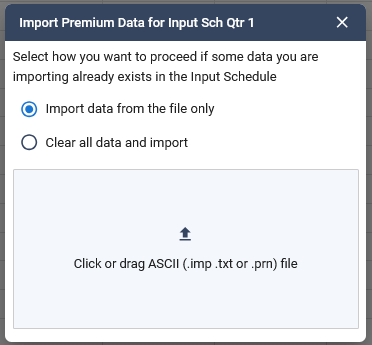
Use the clear existing data option carefully. If existing data is cleared, previously entered amounts may be removed from the Input Schedule before the new file is imported.
Duplicate Municipality Notification
If the import file contains more than one line for the same municipality, Stratus Municipal Pro will display a notification.
This means the file included multiple entries with the same municipality code. Stratus Municipal Pro adds those values together and places the combined amount on one line in the Input Schedule.
A yellow notification is informational. It does not necessarily mean the import failed.
Review Imported Data
After importing, return to the Input Schedule and review the imported values.
Confirm that:
- Premiums appear in the expected municipality rows.
- Amounts appear in the correct premium columns.
- The correct quarter was updated.
- Any expected vendor numbers or city assigned codes appear as needed.
If the imported values do not appear as expected, review the import file format and confirm that the correct year, state, company, and quarter were selected before import.
Copy and Paste Data
You can copy municipal data from a spreadsheet and paste it into the Input Schedule.
To copy and paste data:
- Open the spreadsheet file.
- Select the cells you want to copy.
- Copy the selected cells.
- In Stratus Municipal Pro, click on the corresponding starting cell in the Input Schedule.
- Paste the data.
- Review the pasted values to confirm they appear in the correct columns.
- Select Save.
Manually Enter Data
You can also manually type data into the applicable municipality row on the Input Schedule.
Enter amounts in the correct cells, then select Save.
Activated Jurisdictions
Entering, pasting, or importing data into a municipality row activates that jurisdiction in the navigation tree.
Activated jurisdictions are used to calculate municipal returns and populate related schedules.
Save Changes
After entering, pasting, or importing data, select Save on the right side of the screen.
Unsaved changes will not be included on municipal returns or related schedules.
Related Articles
- Municipal Company Information
- Municipal Input Schedule
- Stratus Municipal File Format for Import
- How to Process Kentucky Municipal Filings